Open the Card tab
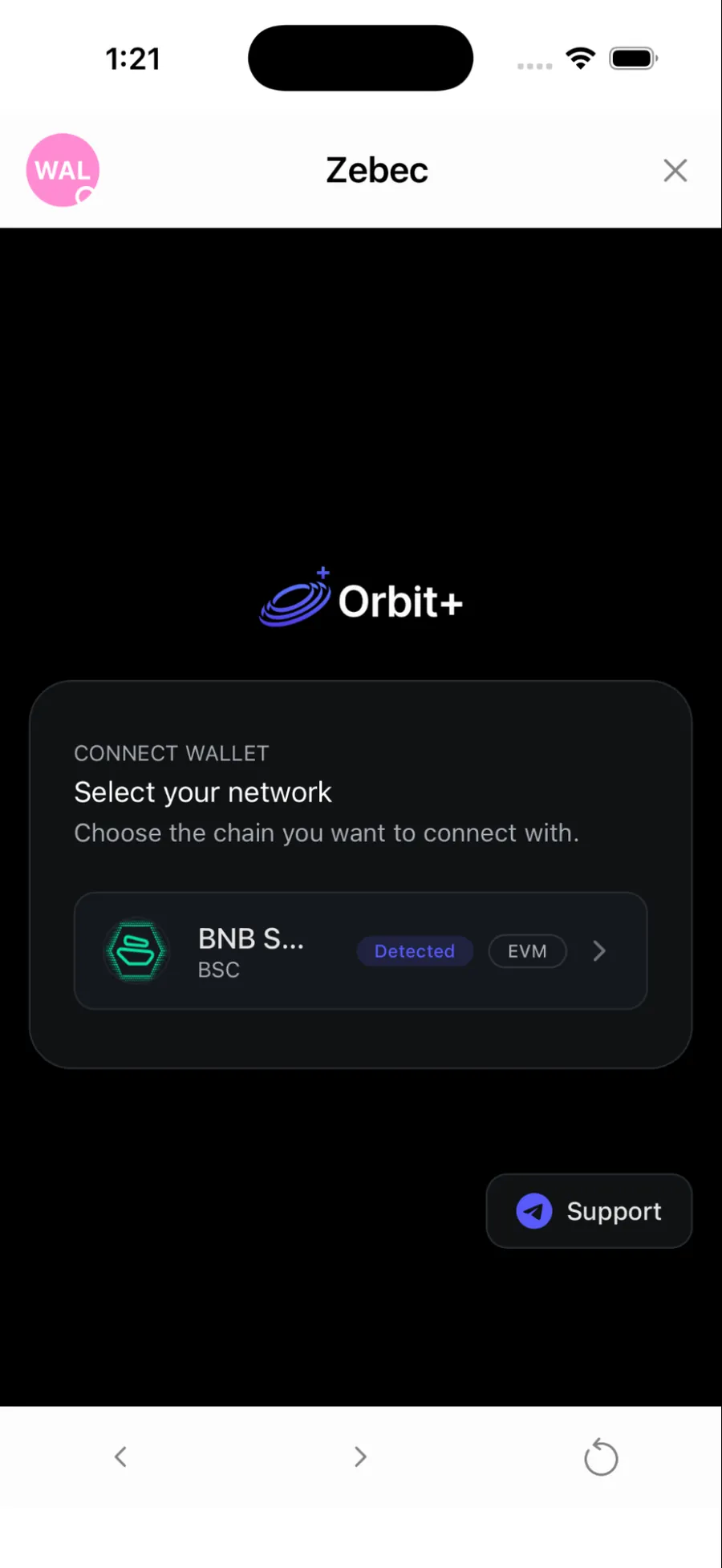
In Orbit Plus, tap Card in the bottom bar. Connect your wallet and choose BNB Smart Chain when asked. You are taken to the Zebec card sign up.
Every screen from tapping the Card tab to paying with Apple Pay, with the waits and the partner names explained along the way.
With a wallet connected on BNB Smart Chain.
USDC, BNB or VELO in your wallet, plus a little BNB for gas.
You verify it once, and your card link arrives there.
Including a 10 to 15 minute wait while the card is issued.
Orbit Plus cards are provided through our partner Zebec, so you will see Zebec and MyPaymentVault branding along the way. That is expected.
In Orbit Plus, tap Card in the bottom bar. Connect your wallet and choose BNB Smart Chain when asked. You are taken to the Zebec card sign up.
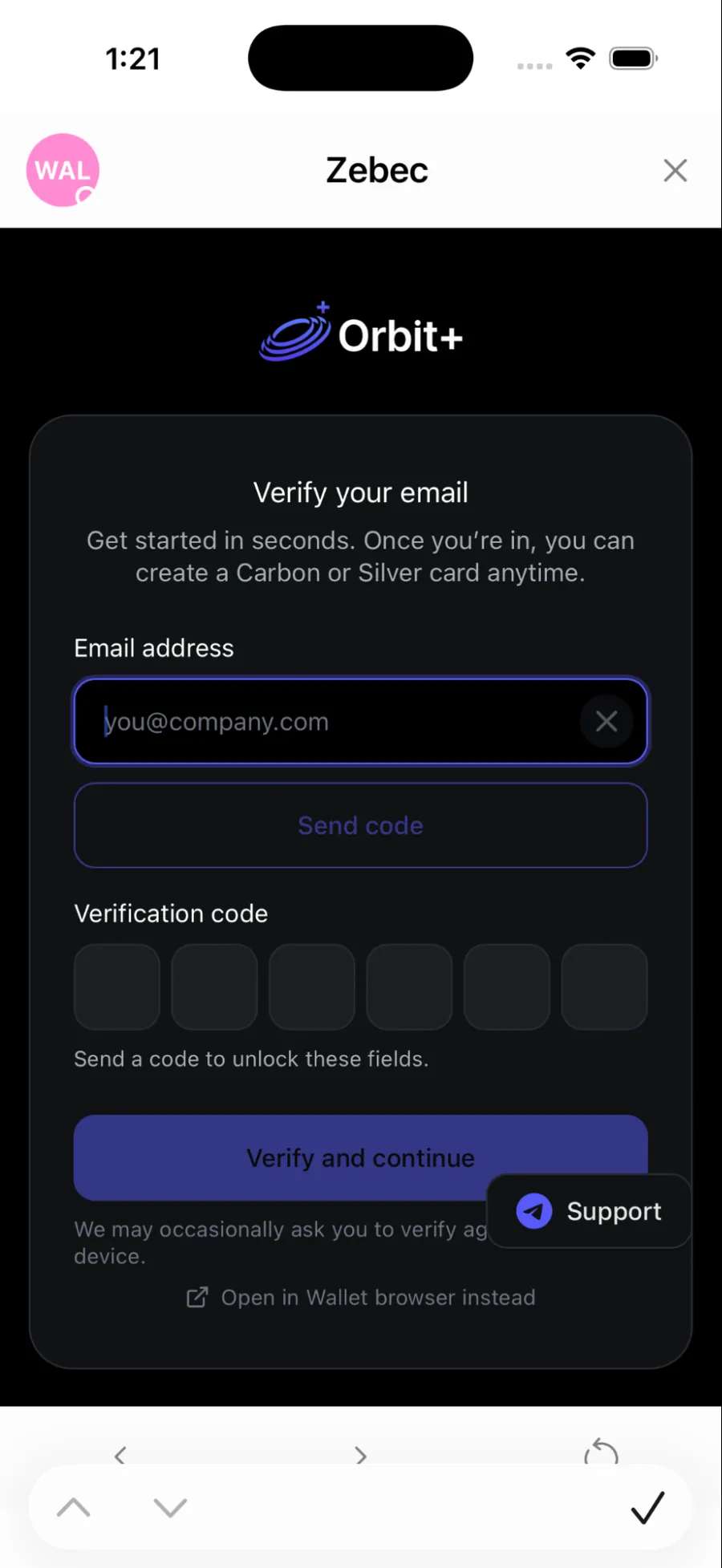
Enter your email and tap Send code. Type the six digit code from your inbox, then tap Verify and continue.
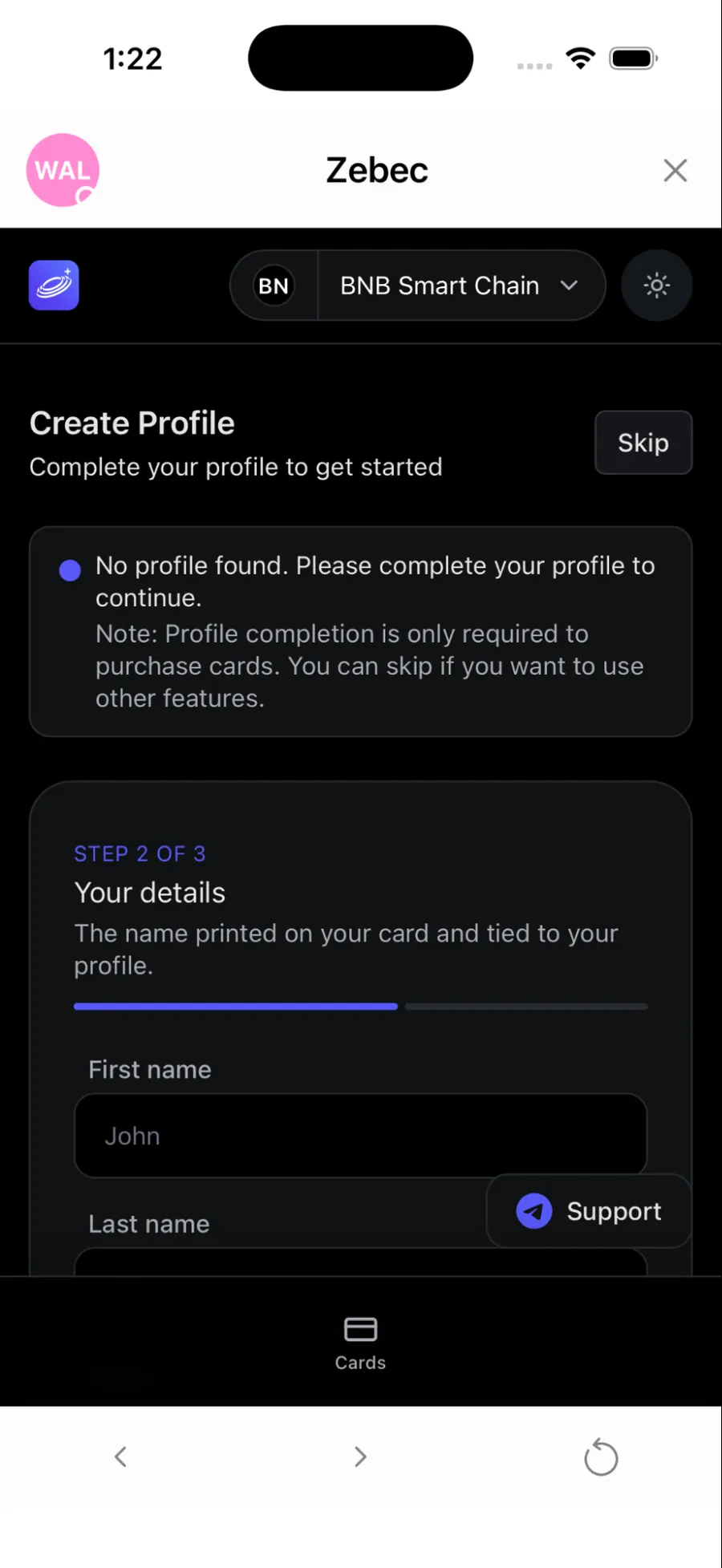
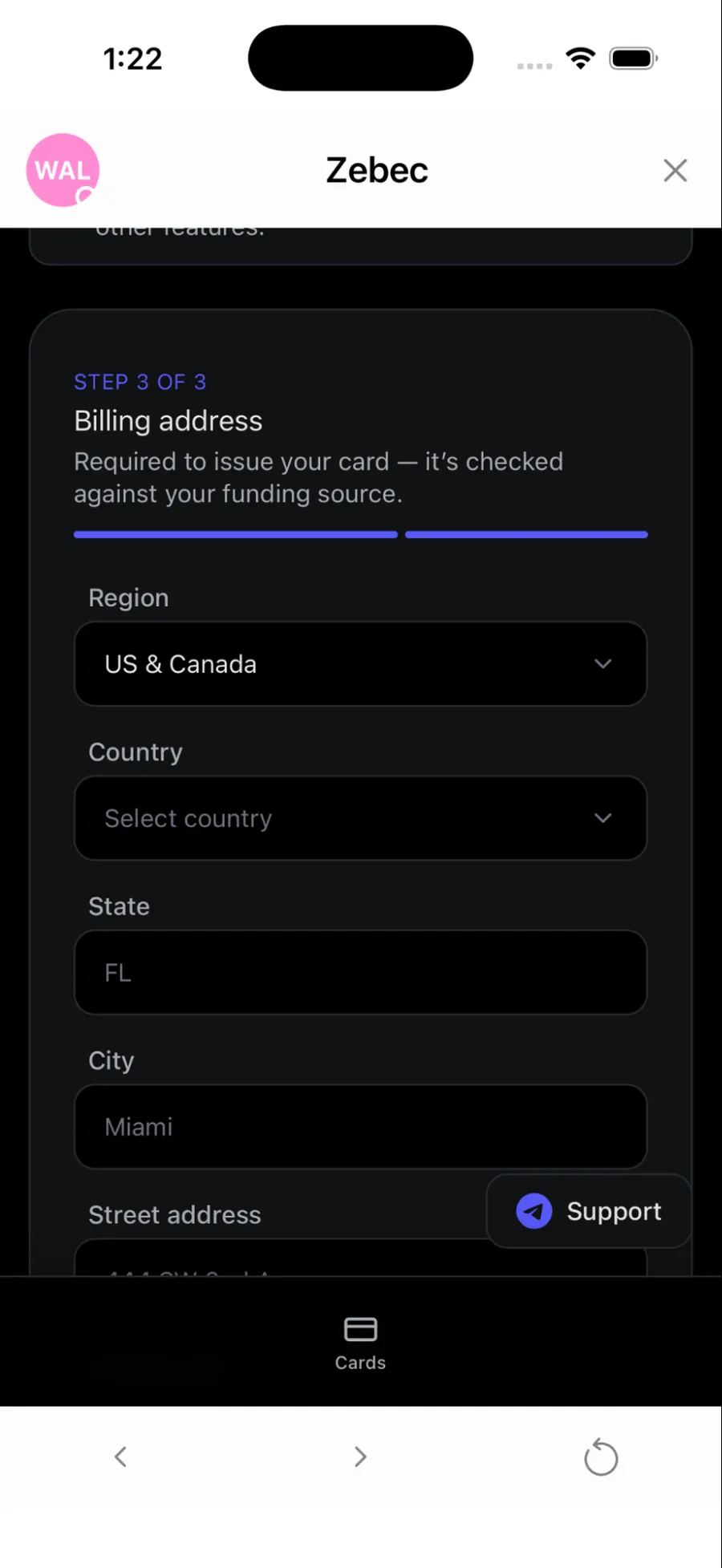
Fill in your name, phone number and billing address. The name is printed on your card, and the address is checked against your funding source.
Pick the token to top up with: USDC, BNB or VELO. Enter the amount in USD and confirm. This first top up is what starts the card being issued.
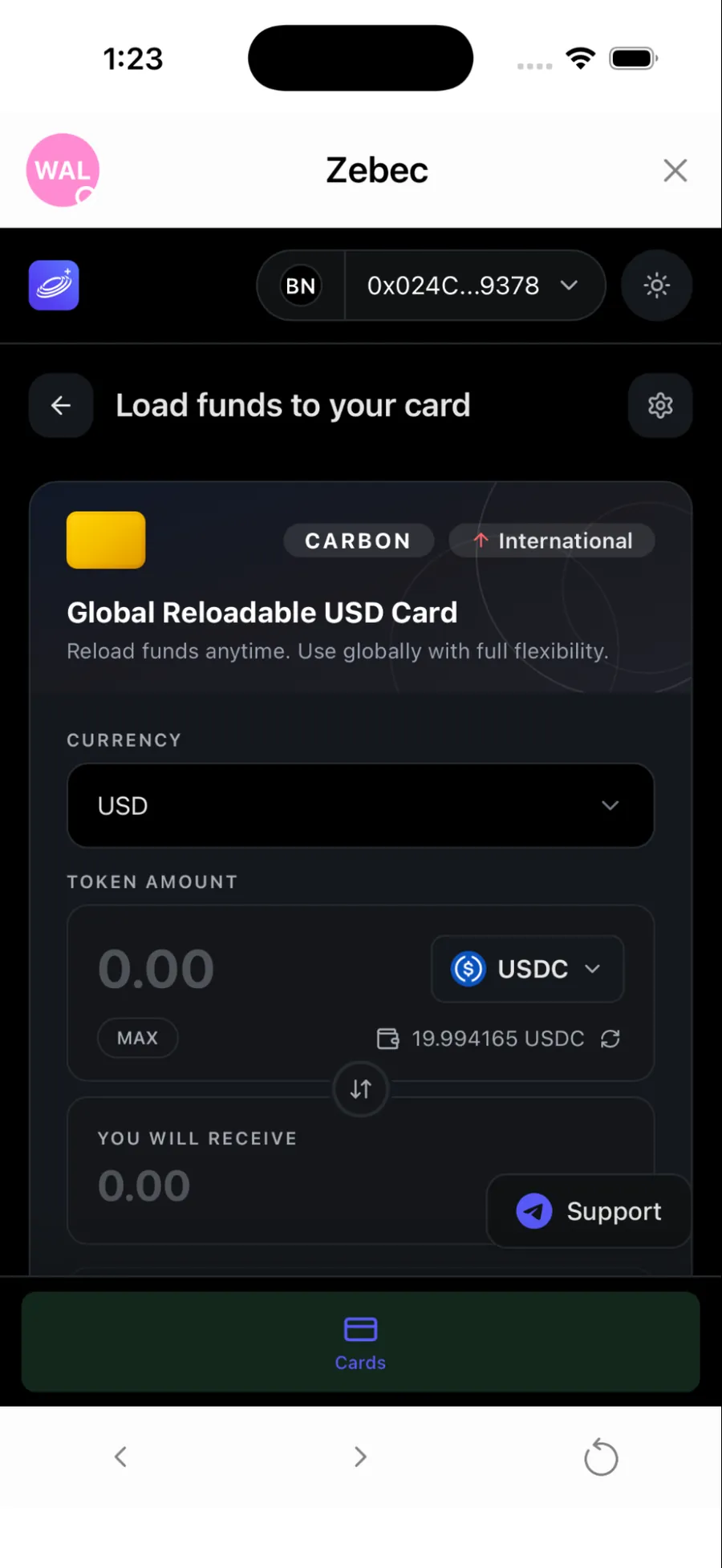
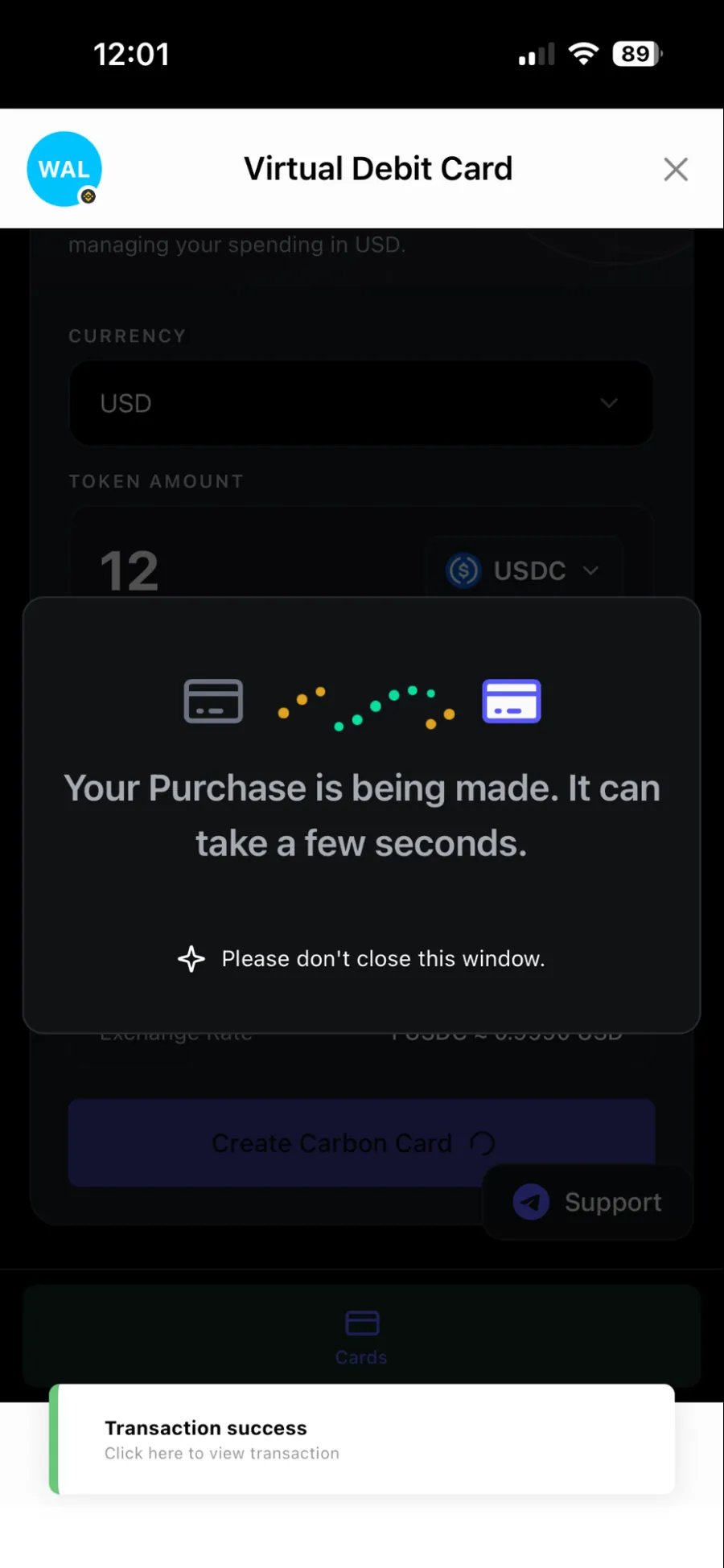
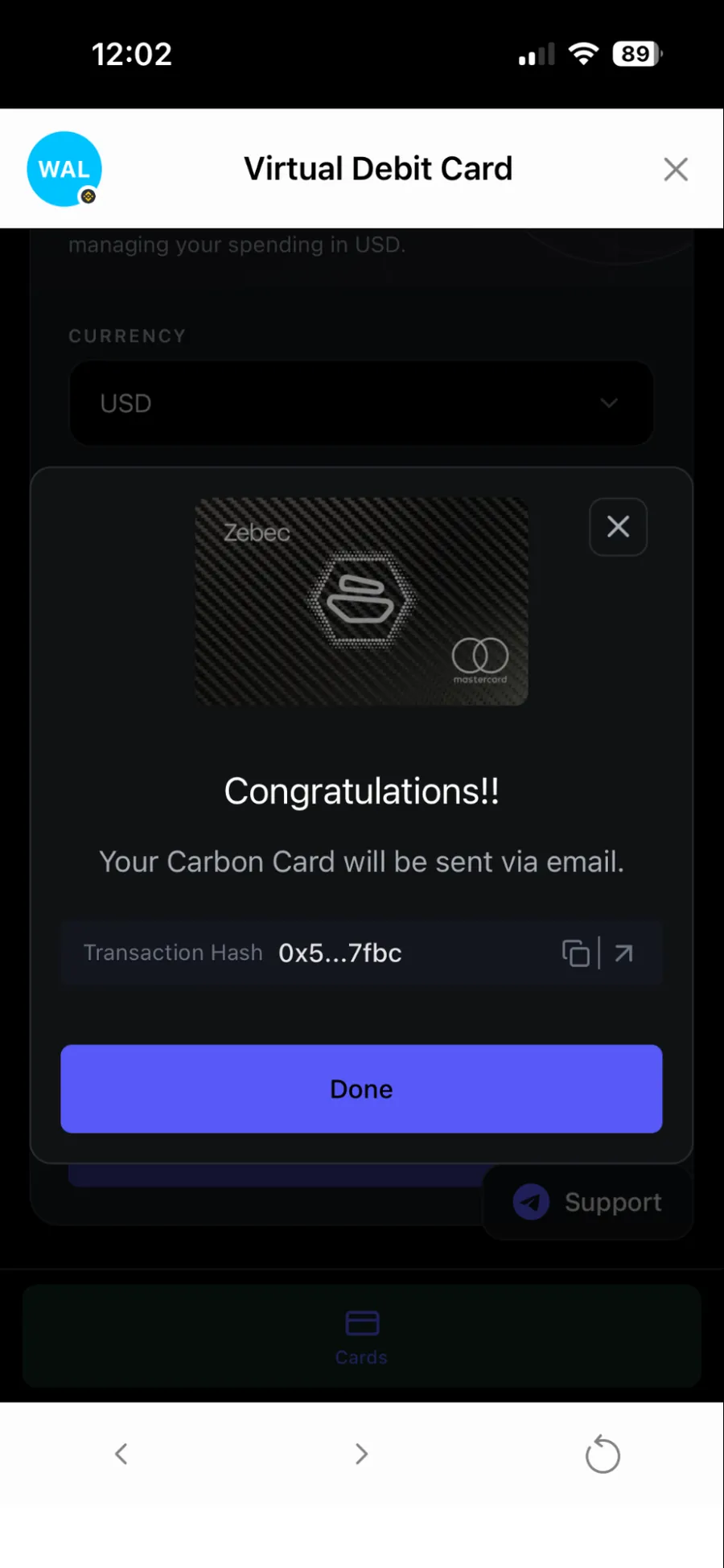
Approve the transaction in your wallet and keep the screen open until it completes. You will see a Congratulations screen with the transaction hash.
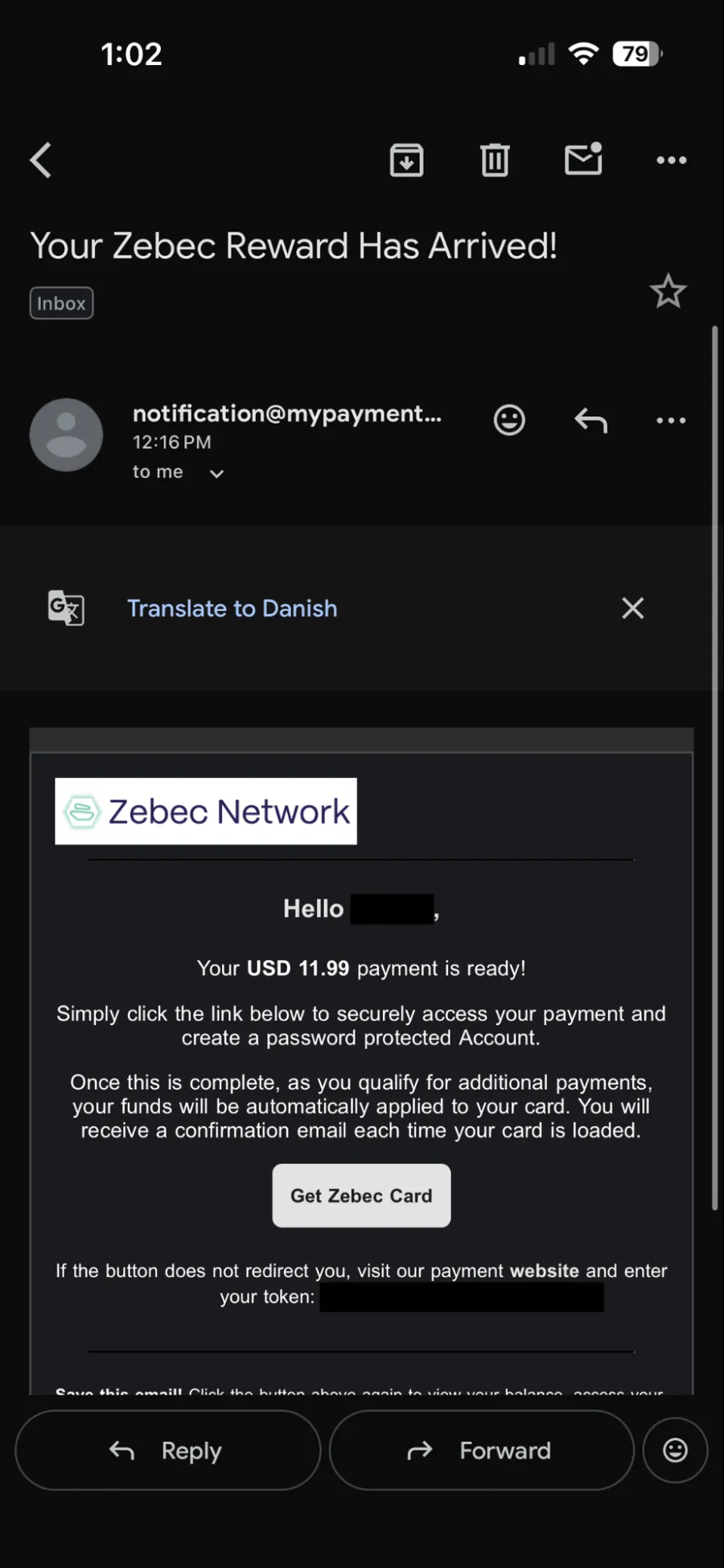
Open “Your Zebec Reward Has Arrived” and tap Get Zebec Card. The link takes you to MyPaymentVault, where your card account lives.
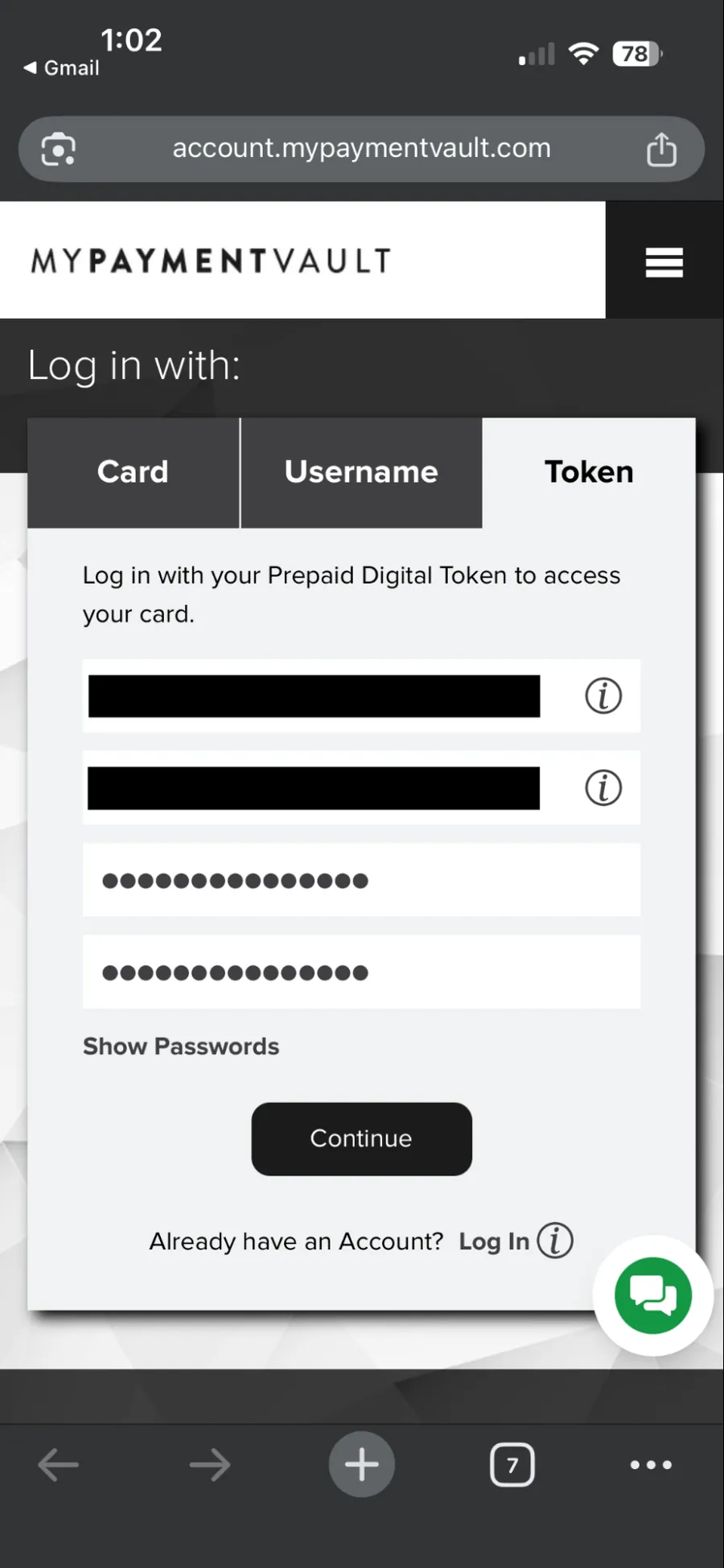
Set a password, complete the extra profile fields and choose a security question. In some cases the platform asks for additional KYC here.
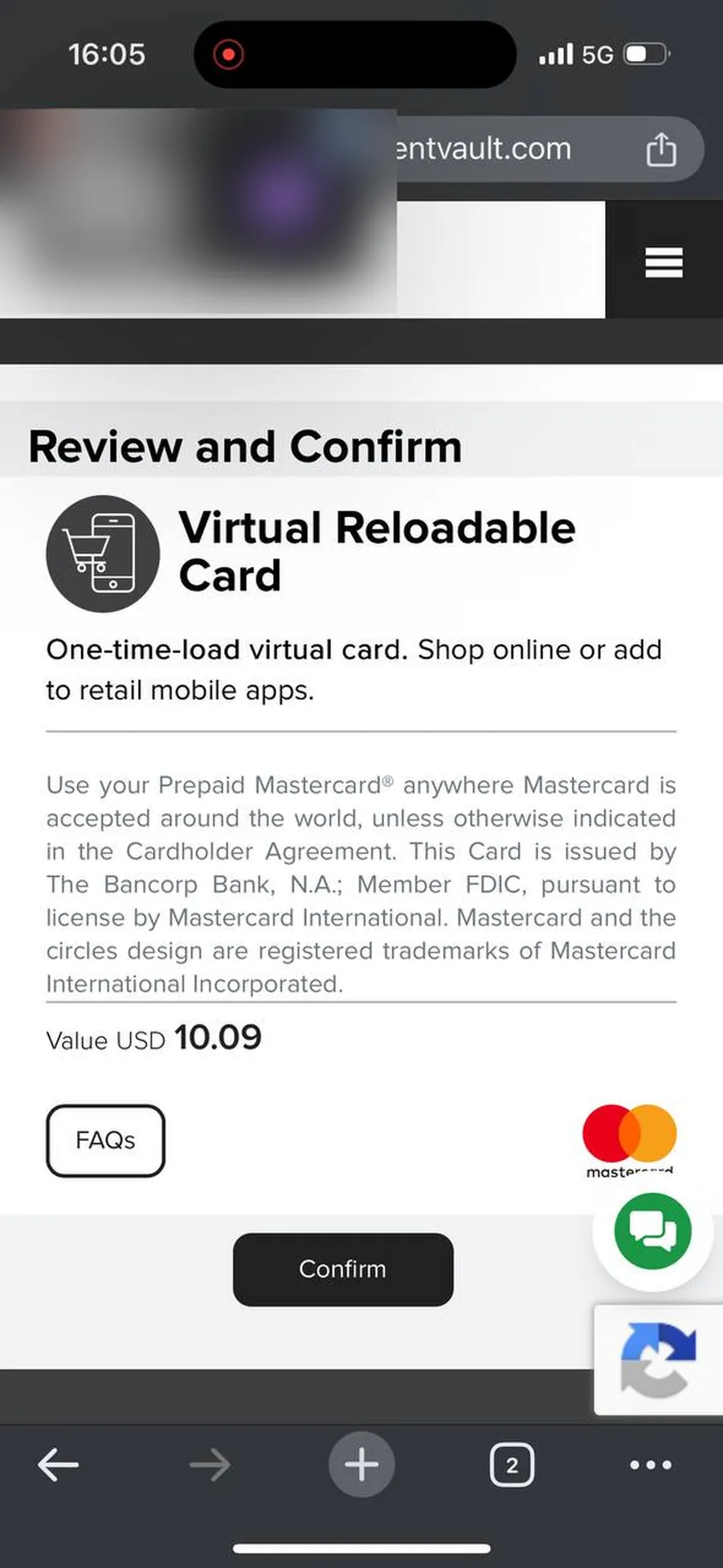
Review the Virtual Reloadable Card summary and tap Confirm to activate it.
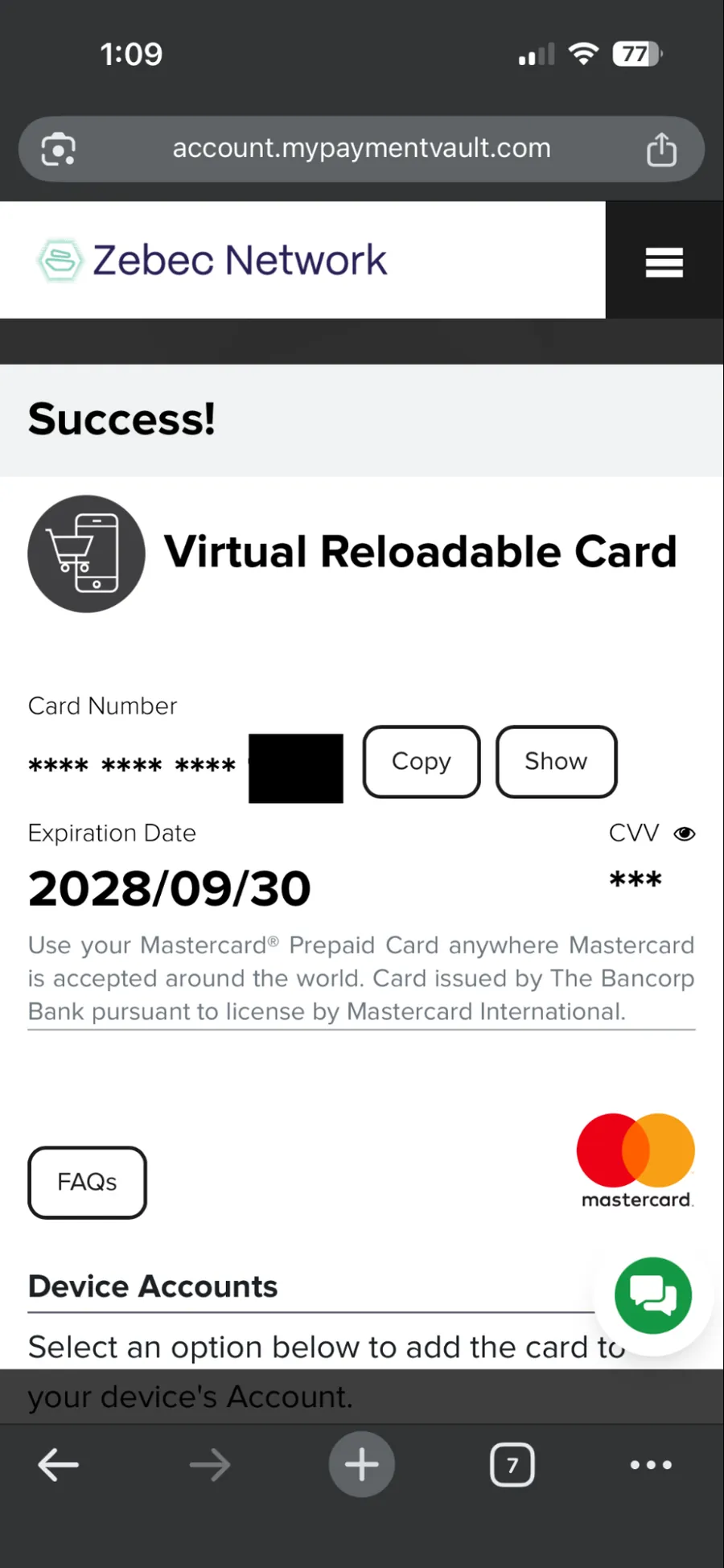
The Success screen shows your card number, expiry date, CVV and PIN. Tap Show or Copy to reveal them. You need these to add the card to Apple Pay.
Once you have your card details, adding it to Wallet takes about two minutes.
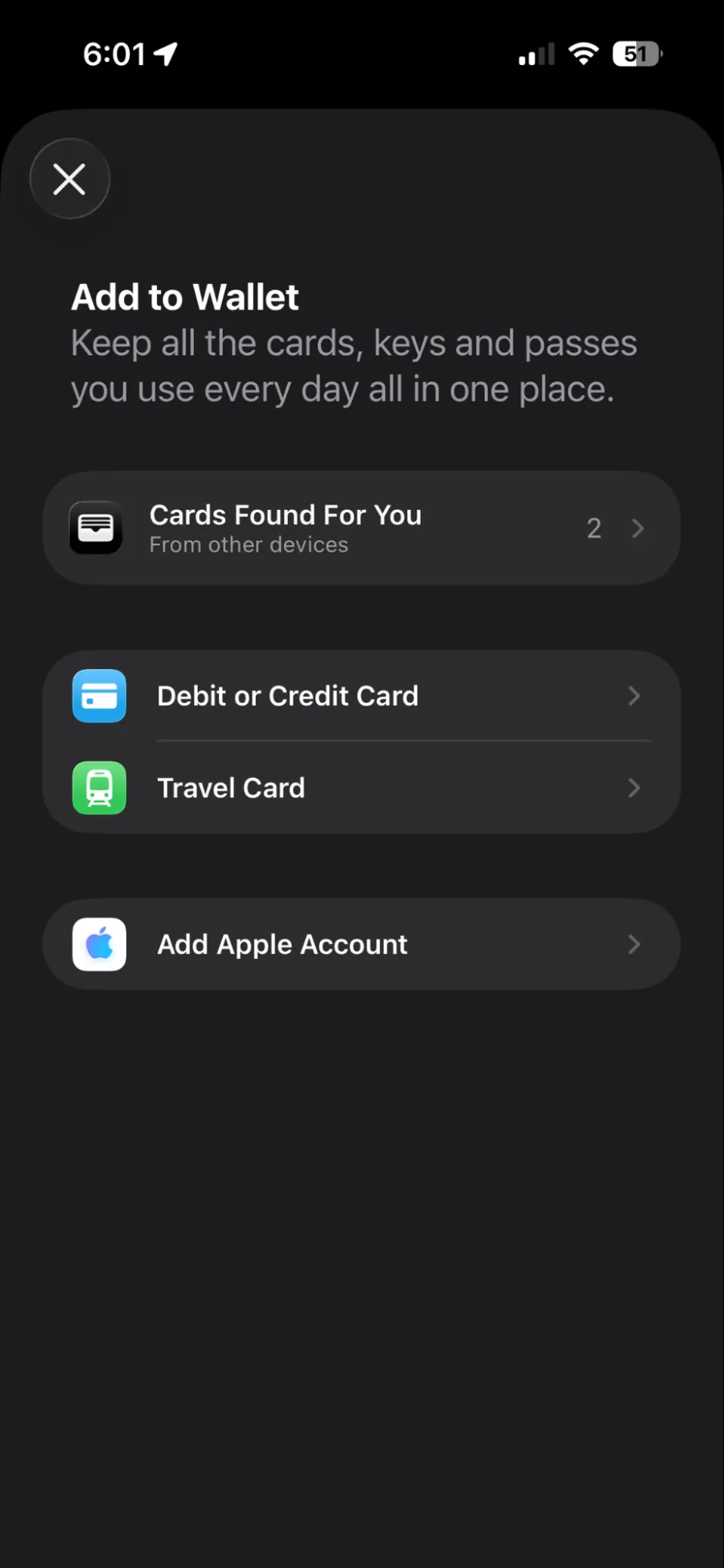
In the Wallet app, tap the plus icon in the top right corner, then choose Debit or Credit Card.
Skip the camera scan and tap Enter Card Details Manually at the bottom of the screen.
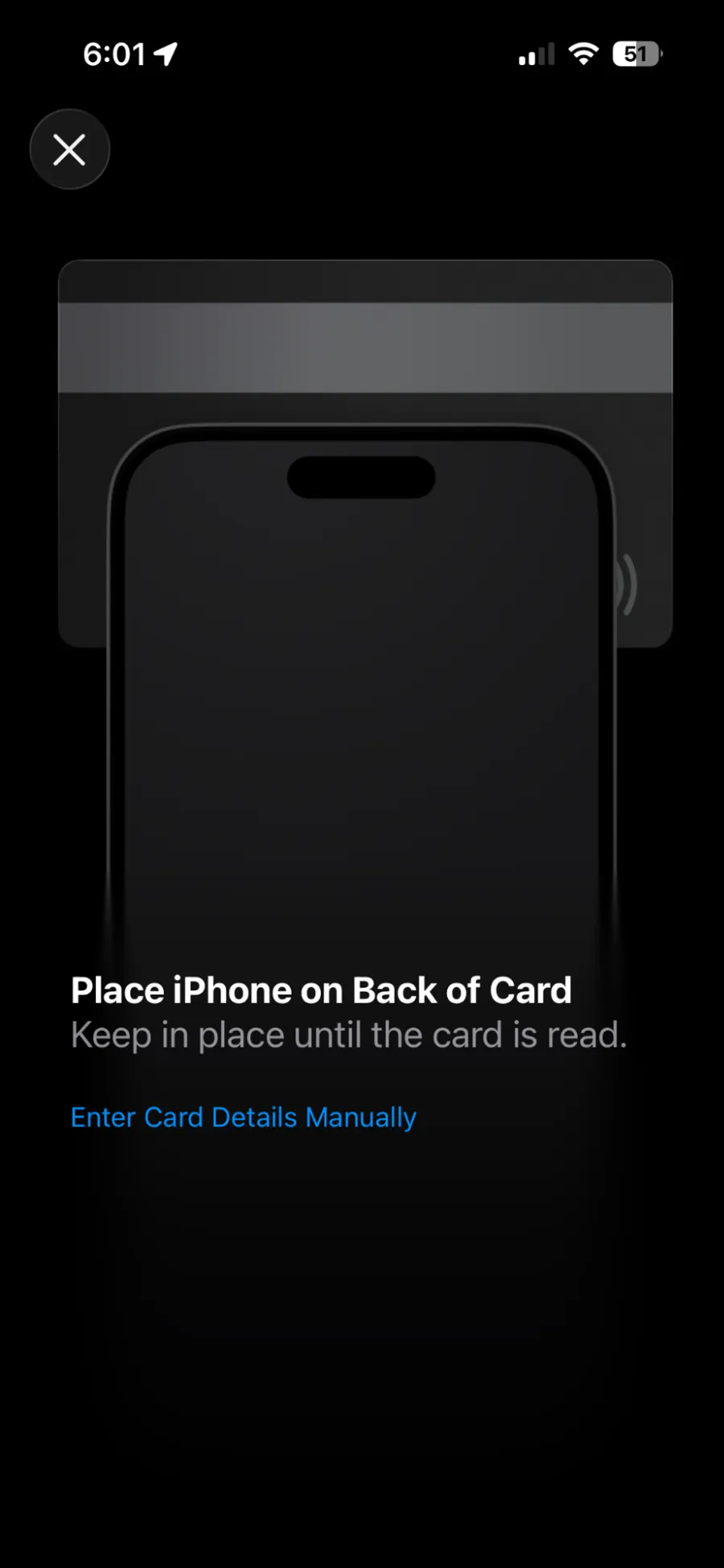
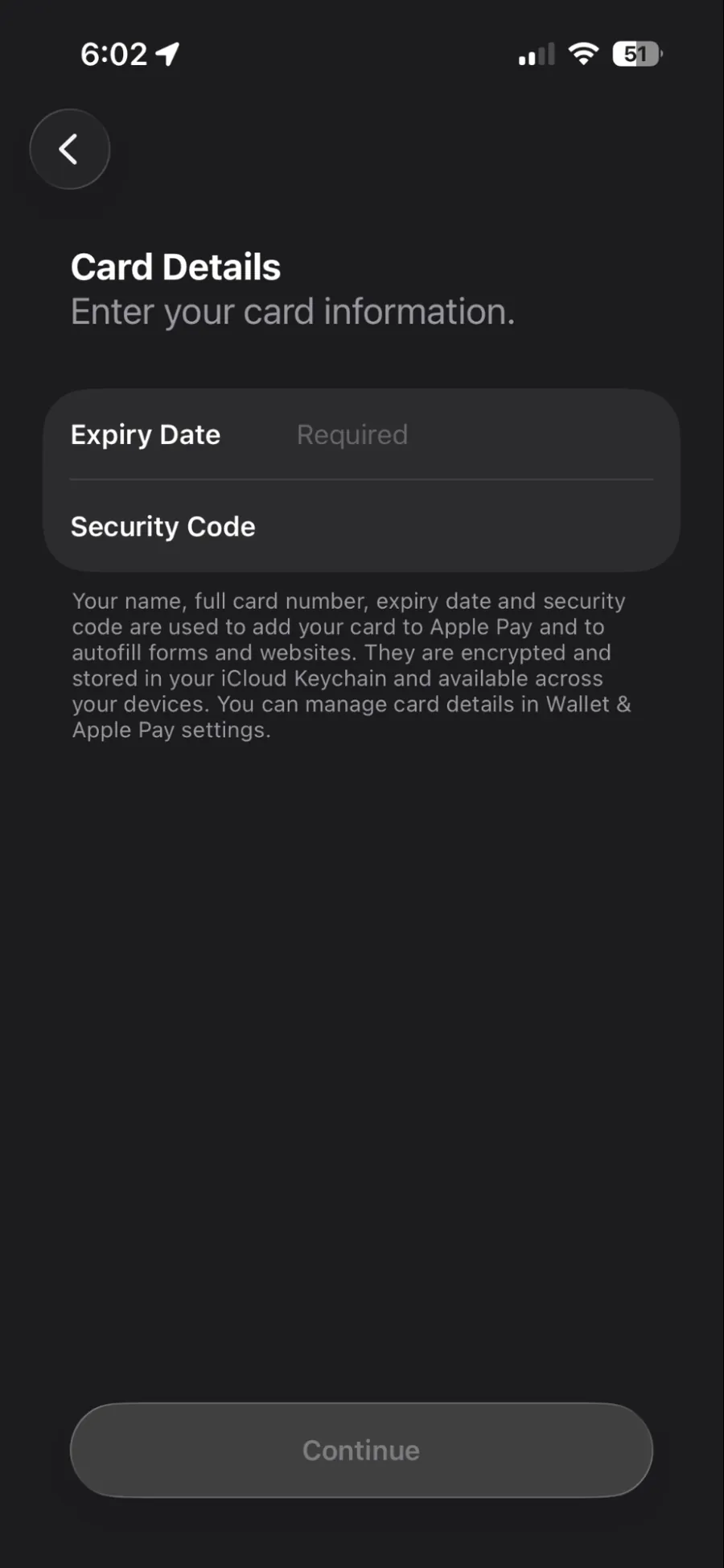
Enter the card number, expiry date and security code from MyPaymentVault, then tap Continue.
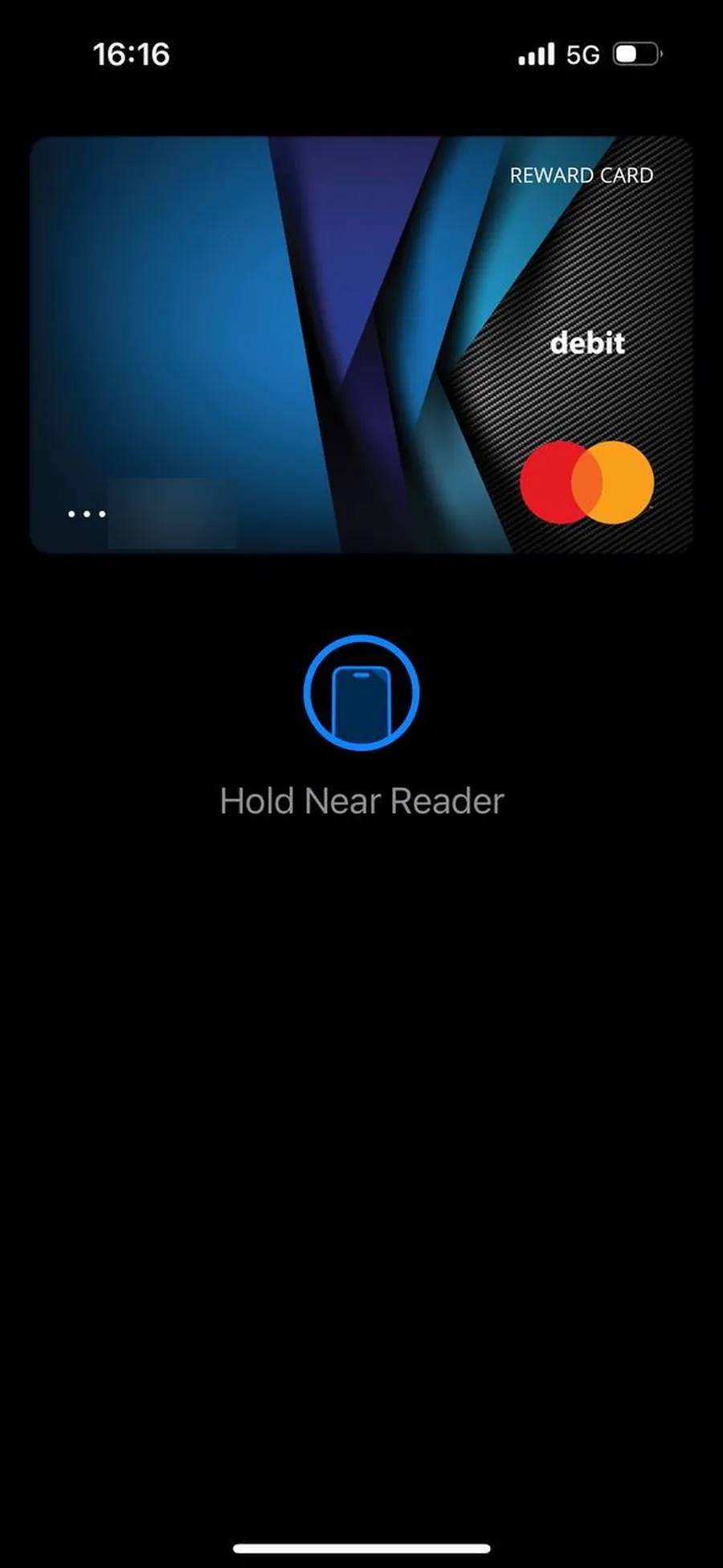
Accept the agreement and let it process. Your card appears in Wallet and is ready to tap to pay.
Email [email protected] with your wallet address and the step number you are stuck on. Add a screenshot if you can. Your wallet address is how the team finds your sign up.
Usually 10 to 15 minutes after your first top up is confirmed on chain. The card is ready when the “Your Zebec Reward Has Arrived” email lands.
Check your spam and promotions folders first. If nothing has arrived after 30 minutes, email [email protected] with your wallet address and the transaction hash from step 5.
USDC, BNB or VELO on BNB Smart Chain. Keep a small amount of BNB in your wallet to cover gas.
The card platform occasionally requests additional verification when you create your MyPaymentVault account. Complete it and the rest of the flow continues as normal.
Log in to your MyPaymentVault account. Your card details are shown there whenever you need them.
Open the Card tab in Orbit Plus and choose Load funds. You can reload any time with USDC, BNB or VELO.
The card is provided through our partner Zebec. Your card account is held at MyPaymentVault and the card runs on the Mastercard network, so those are the names you see during sign up and when you log in.
Send us your wallet address and the step you are on. The team will pick it up from there.
Do not have the app yet?